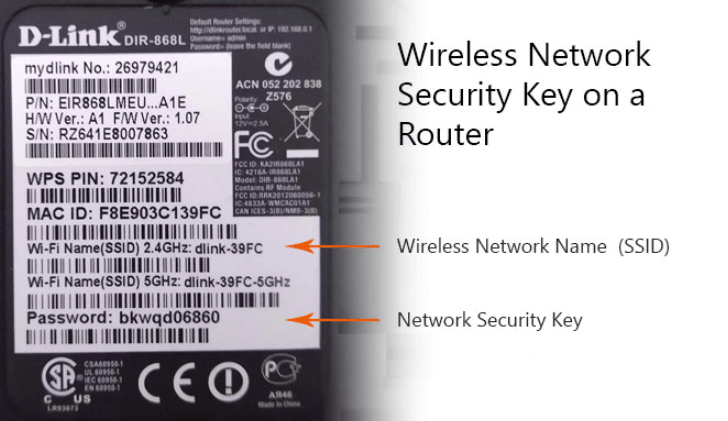

In today’s connected households, the network security key is more than a password—it’s the frontline protection that keeps your online activity, devices, and data private. If you’ve ever wondered how to keep hackers out while allowing family and guests to connect, this guide breaks down the concept in plain terms and offers actionable steps you can implement today.
Understanding the network security key
Put simply, the network security key is the passphrase required to join a wireless network. It is sometimes called a Wi‑Fi password or a security key. When paired with modern encryption protocols such as WPA3 (or WPA2 if WPA3 isn’t available), the key helps ensure that the data transmitted between your router and connected devices is scrambled so that others cannot read it. In practice, your network security key acts as the gatekeeper—everyone who wants to access your Wi‑Fi must provide the correct key.
Why it matters for home and small offices
A strong network security key reduces the risk of unauthorized access, data interception, and bandwidth abuse. A weak or default key that came with the router can be guessed or leaked, potentially exposing sensitive information like login credentials, banking details, and personal messages. By using a unique, complex key—ideally 12 to 16 characters long with a mix of uppercase and lowercase letters, numbers, and symbols—you create a much tougher barrier for would‑be intruders. Additionally, enabling the latest encryption standard available on your router adds another layer of protection beyond a long password.
How to find or set your network security key
Most routers display the default SSID (network name) and security key on a label attached to the device itself. If you’re setting up a new router, you’ll be prompted to create a custom network security key during the initial setup. For existing networks, you can usually view or change the key through the router’s admin interface. On Windows, macOS, iOS, or Android, you can also view stored keys for known networks or share access securely using features like QR code printouts from compatible routers. Remember to store your key in a password manager so you don’t lose it and accidentally reuse weak phrases.
Best practices for securing Wi‑Fi beyond the key
While a strong network security key is essential, effective Wi‑Fi security is multi‑layered. Consider these best practices:
- Use WPA3‑Personal if your devices support it; otherwise WPA2‑Personal with AES encryption. Avoid WEP or WPA with TKIP, which are outdated and vulnerable.
- Disable WPS (Wi‑Fi Protected Setup), which can be an easy target for attackers.
- Keep router firmware up to date to protect against known vulnerabilities.
- Segment a guest network for visitors, keeping your main network private and isolated from guest devices.
- Regularly review connected devices and remove any you don’t recognize.
Common questions
People often ask whether sharing their network security key is safe. Sharing with trusted guests on a guest network is generally safer than distributing your main key. If you suspect a key has been compromised, change it immediately and reassess which devices need access. Another helpful practice is to create a separate, long‑term key for daily use and rotate it periodically, especially if you suspect a device may have been compromised.
For a deeper dive into this topic, you can read what is the network security key/.
Enhance your tech knowledge further by visiting the Scriify homepage for more insightful guides and tips on online security, networking, and privacy.