
As the centerpiece of your living room gaming setup, the PlayStation 5 relies on its USB ports to connect essential accessories. From charging DualSense controllers to expanding storage and enabling headsets, the options at the front and rear of the console unlock a lot of potential. If you’re curious about how to maximize this connectivity, this guide covers everything you need to know about the ps5 usb ports and how to use them most effectively. Understanding these ports can reduce setup time, prevent dropped connections, and help you plan a better gaming station. Whether you play solo, stream multiplayer, or share your setup with friends, the right USB configuration makes everything run smoother.
What types of ports does the PS5 offer?
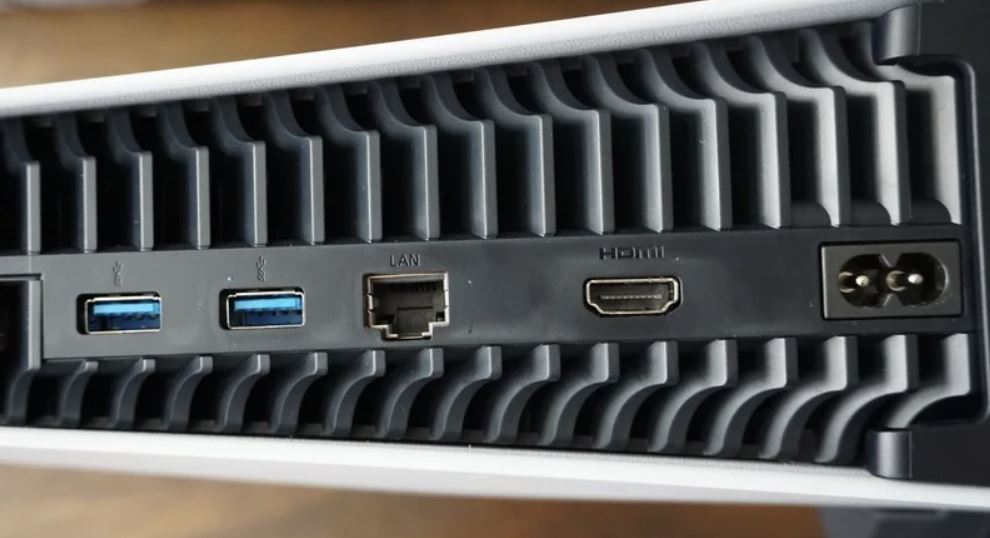
At its core, the PS5 provides a mix of USB connections designed for high-speed data transfer and reliable power delivery. You’ll find ports on the front for quick access—ideal for charging a controller or plugging in a headset—along with ports on the back suitable for external storage and other peripherals. The exact arrangement depends on the model, but the overarching idea is simple: use front ports for convenience and back ports when you need steady, continuous connections. For most gamers, having at least one USB-C and one USB-A port accessible ensures you can attach both newer devices and legacy accessories without adapters.
Maximizing your ps5 usb ports
To get the most from the ps5 usb ports, pair your devices with appropriate ports that match their power and speed needs. Use USB 3.x ports for drives and high-draw accessories to minimize lag. If you intend to run multiple accessories at once, consider a powered USB hub to avoid overloading the console’s internal power supply. When choosing a drive for game storage, look for a capable USB enclosure with a fast read/write speed and ensure it is formatted according to Sony’s requirements for external storage. Keep cable lengths reasonable to avoid signal degradation and route cables along the back of the unit to prevent cable clutter.
Choosing accessories and storage
Beyond storage, the ps5 usb ports support a wide range of peripherals that enhance your experience. Wireless gaming headsets, charging docks, and even keyboards for navigating menus can be connected with ease. Remember that not every USB accessory will be fully compatible, so keep your devices updated and test new gear in small batches. If an accessory does not register, try a different port or reboot the console. For a deeper dive into options and compatibility, see the guide at ps5 usb ports.
When planning a setup, consider the layout: place frequently used devices within arm’s reach of the front ports, while keeping the rear ports free for larger peripherals. If you rely on multiple devices at once—such as a headset, a controller charging dock, and an external drive—a powered hub can deliver stable power without stressing the console. Regularly check for firmware updates for your peripherals, as manufacturers sometimes improve compatibility with new PS5 system software.
Troubleshooting and tips
Common issues include devices not recognized, slow data transfer, or intermittent connections. First, unplug and reinsert the device, then try a different port. If problems persist, test another cable or a different device to determine whether the issue is cable-, port-, or device-related. Power concerns can also cause disconnects; using a powered hub often resolves these scenarios. Finally, keep an eye on Sony’s official notes for any USB-related fixes in system updates, as firmware refinements can improve compatibility across a wider range of accessories.
With the right setup, the ps5 usb ports become a reliable gateway to expanded creativity and comfort in your gaming sessions. Take stock of the devices you use most, plan your cable layout, and experiment with port placement until everything feels natural. For more guides and updates on PS5 hardware, visit FJreo Home.