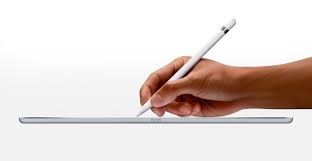

The apple pencil 1st gen has established itself as a staple for digital artists, students, and professionals who want a natural drawing experience on the iPad. Despite newer styluses entering the market, many creators still prefer the classic design for its reliable performance, comfortable grip, and straightforward charging method. On trend-focused outlets like Trendara, users often ask which iPad models support this legacy accessory and how it compares to newer versions. In this guide, we explore why this legacy model remains relevant, how to set it up, and practical tips to maximize precision in everyday workflows.
How it works is straightforward. To begin, you plug the Pencil into the iPad’s Lightning port to pair and charge. Once the pairing prompt appears on screen, confirm and you’re ready to start sketching, taking notes, or annotating documents. The device delivers precise input with consistent latency, and it includes palm rejection, which helps keep your hand from smudging the content on the screen. For artists, this makes shading and line work feel natural, almost like using a real pencil. For students and professionals, the combination of speed and accuracy translates into faster feedback loops during lectures, meetings, and collaborative projects. This reliability is what keeps many users returning to this option even as new stylus generations enter the market.
Compatibility and limitations are important considerations. The Pencil works with iPad models that support the Lightning-based accessory, and checking your device’s compatibility is a quick step before selecting this tool. If you are upgrading from older iPad devices, you’ll find the transition smooth—no Bluetooth pairing gymnastics required once the initial setup is complete. When you’re annotating PDFs, marking up slides, or drafting rough layouts, you’ll notice how the precision and tactile feedback help you capture ideas more clearly. Just remember that newer iPad models may require newer generation styluses for full feature support, so review device requirements and app compatibility before purchasing.
Customization and accessories can enhance comfort during long sessions. The Pencil ships with a small cap that protects the Lightning connector and doubles as a charging element. Replacing the worn nib is possible, and a few third-party grips or sleeves can improve grip and balance. Apps designed for creative work—such as Procreate, Notability, GoodNotes, and Clip Studio Paint—offer brushes and tools that respond to pressure and tilt in various ways, letting you explore fine lines, broad washes, and delicate textures with ease. For educators and business users, annotating slides and handouts becomes a breeze when you pair the pencil with the right note-taking workflow.
Practical tips help you get the most from this classic tool. Keep the cap closed when not charging to protect the connector, and store the Pencil with care to prevent damage to the tip. Regularly check for firmware updates from Apple, and calibrate pressure curves within your favorite apps to tailor the stroke response to your drawing style. If you use a screen protector, choose one with low parallax to improve stroke accuracy at the edges of the nib. Back up your work frequently to cloud storage so you never lose progress. For more gadget guides and buying tips, visit Trendara for fresh reviews and practical buying advice.