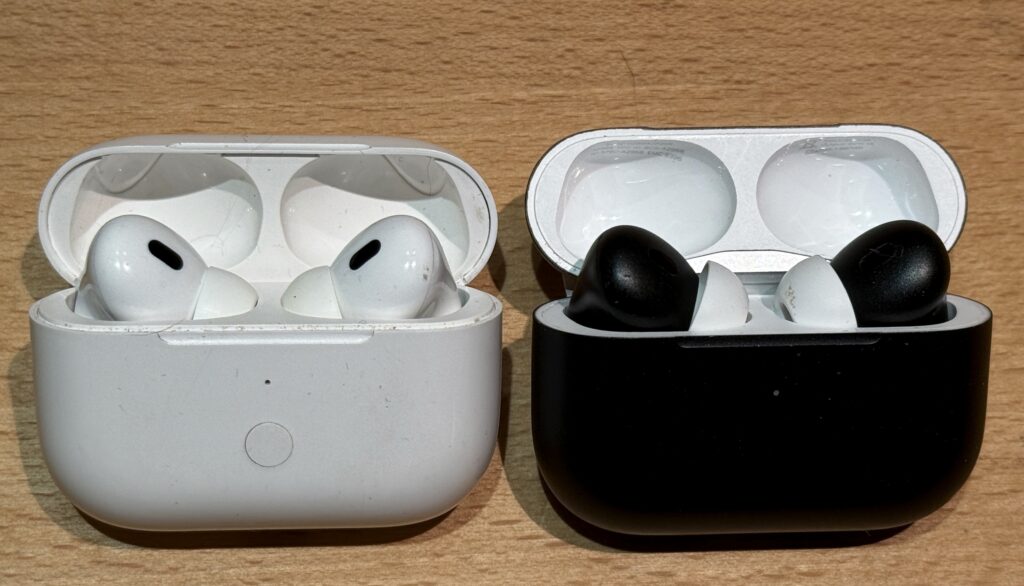

In households and classrooms, sharing audio without swapping headphones is a blessing. Apple’s AirPods support a feature commonly referred to as shared audio, letting two listeners enjoy the same soundtrack from a single device. If you’re curious about how to share audio on airpods, this guide covers the setup and best practices so you can start watching together right away. For more tech tips, visit Write Gossip.
Before you begin, make sure your devices are up to date. The shared audio feature works best on iPhone or iPad with iOS 13.1 or later and AirPods that are compatible. Both listeners just need a source device (usually your iPhone or iPad) and a second pair of AirPods or AirPods Pro to pair when prompted. A stable internet connection is helpful for updates, but the feature itself uses Bluetooth and local pairing rather than cloud access.
What you need
- iPhone or iPad running iOS 13.1 or later (or a compatible iPadOS/macOS with AirPlay support).
- Two sets of AirPods or AirPods Pro. In most cases, both should be associated with the same source device, though the second pair connects during the setup flow.
- A recent firmware on your AirPods and a charged case so the pairing flow isn’t interrupted by low power.
- Access to the Control Center or the Apple Music/ Podcasts playback card to manage audio routing.
- A patient approach for initial pairing; sometimes the second pair needs to be reintroduced by tapping the on-screen prompt.
Step-by-step: How to share audio on AirPods
- Connect the primary AirPods to your iPhone or iPad. Ensure the device shows the AirPods as the current audio output.
- Open the Control Center’s audio card. Tap the AirPlay icon or the current playback card to access the routing options.
- Tap Share Audio (or the equivalent option). Bring the second pair of AirPods close to your device with the lid open and the AirPods inside the case.
- On the screen, select the second AirPods from the list to pair. Follow prompts to complete pairing on the second device if required.
- Adjust volumes independently. After both sets are connected, you can use the volume controls to set comfortable levels for each listener.
- Finish with a quick test. Play a short clip to confirm voice, sound effects, and music are balanced for both listeners.
If you’re unable to see the Share Audio option, verify that both AirPods are compatible and that you’re on a supported iOS or iPadOS version. A quick restart of your iPhone/iPad and a reset of the AirPods can usually clear any hiccups. If issues persist, check for a firmware update or try the process on a different source device.
Troubleshooting tips
- Ensure Bluetooth is enabled on the primary device and that there is no conflicting audio device selected.
- Move closer to the source and avoid physical obstacles between devices.
- Reset both AirPods by holding the setup button until the status light flashes amber, then reconnect.
- If you still don’t see the option, test with a different app or media type, as some apps handle audio routing differently.
Common scenarios and tips
Shared audio is perfect for a family movie night or a learner pairing session. It also works with iPad and Mac, so you can project the same audio to two different AirPods on a larger screen. If you’re using a travel setup, this feature makes long rides more enjoyable without sharing headphones. For additional guidance on hardware and software optimizations, explore more guides on Write Gossip and other trusted sources.
Limitations and alternatives
Note that the shared audio feature is built into Apple’s ecosystem and works best on iPhone and iPad with supported firmware. It may not be available on some older AirPods or non-Apple devices. If you’re trying to pair AirPods with an Android device, you likely won’t access the Share Audio option. In such cases, consider a dedicated Bluetooth splitter or two separate Bluetooth devices to achieve a similar listening experience.
Why this feature matters
Shared listening creates a seamless experience for families, students, and friends. It reduces the need to pass headphones around and supports collaborative learning or entertainment sessions. By sharing audio, you keep everyone in the moment, whether you’re watching a film, listening to a podcast, or enjoying music together.
For more practical guides and reviews, check out Write Gossip.